
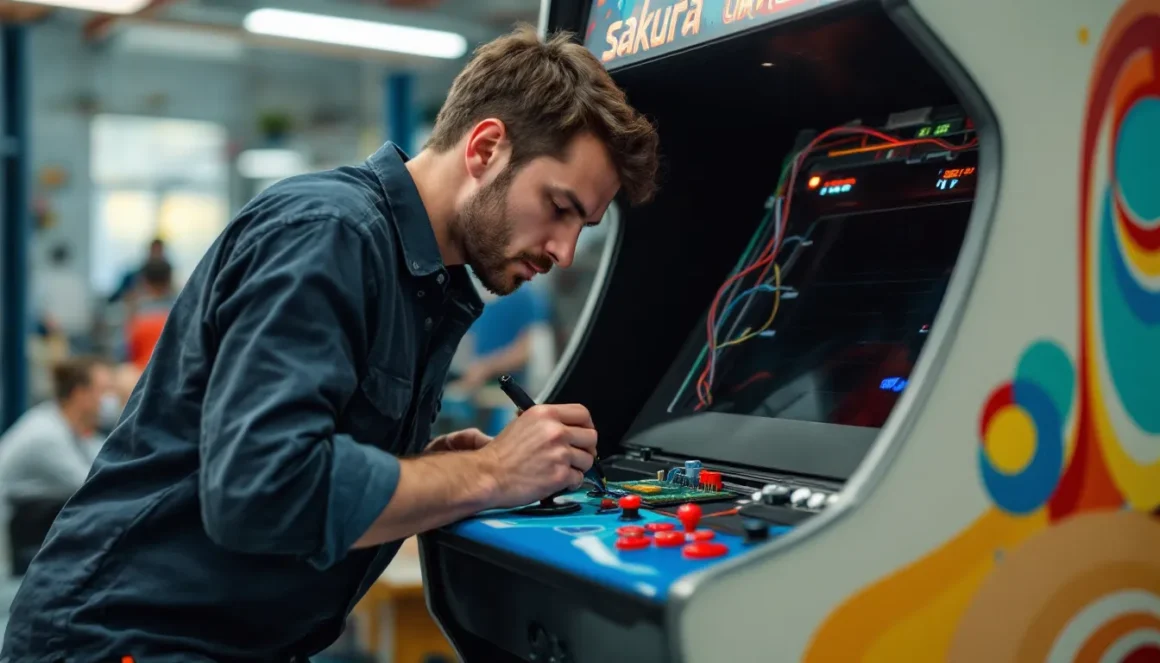
Sakura retro modding has exploded into one of the most vibrant corners of the arcade preservation scene, blending nostalgia with cutting-edge customization. Whether you own a Sakura arcade cabinet or dream of building one from the ground up, modding opens a treasure trove of possibilities: updated graphics, expanded game libraries, refined controls, and restored hardware that rivals machines half its age. The Sakura community has spent decades refining techniques to breathe new life into these beloved cabinets, and 2026 marks a golden era for hobbyists looking to join the movement. This guide walks you through everything you need to know, from the basics of Sakura retro modding to advanced optimization strategies that’ll have your cabinet running better than ever.
Key Takeaways
- Sakura retro modding upgrades vintage arcade cabinets with modern hardware, emulation boards, and custom firmware to improve gameplay, compatibility, and longevity while preserving the cabinet’s original legacy.
- Essential tools for Sakura modding include a soldering iron, multimeter, wire strippers, anti-static protection, and compatibility verification to ensure new hardware matches original cabinet voltages and connector standards.
- Three proven mod paths dominate the scene: budget Raspberry Pi builds ($80–150), mid-range dedicated arcade boards ($300–600), and high-end mini-ITX PCs ($800–1500), each offering different performance and flexibility trade-offs.
- MAME emulator is the industry standard for arcade emulation, supporting thousands of Sakura-era games with near-perfect accuracy and regular updates for ROM compatibility.
- Common troubleshooting areas include display refresh rate mismatches, button mapping errors, input lag from USB polling or monitor latency, and audio ground loops—each with straightforward diagnostic steps and fixes.
- Successful Sakura retro modding requires preserving original hardware components, documenting wiring and connections before disassembly, testing game libraries methodically, and running load tests for 8+ hours to ensure thermal stability.
What Is Sakura Retro Modding?
Sakura retro modding refers to the process of upgrading and customizing vintage Sakura arcade cabinets with modern hardware, firmware, and software enhancements. At its core, it’s about taking a classic machine, often decades old, and retrofitting it with contemporary technology to improve gameplay, compatibility, and longevity.
When enthusiasts talk about Sakura retro modding, they’re usually discussing one or more of the following modifications:
- Emulation board replacements that run MAME, Daphne, or proprietary Sakura emulators
- Control panel upgrades with new joysticks, buttons, and wiring harnesses
- Display improvements including LED overlays, new CRT tubes, or LCD monitor swaps
- Audio enhancements via amplifier upgrades or sound card replacements
- Storage expansion to house hundreds or thousands of arcade games
Unlike general arcade restoration, which aims to return a cabinet to its original factory state, Sakura retro modding embraces modernization. The goal isn’t pure preservation, it’s accessibility. Players want their vintage Sakura cabinets to run the latest ROM sets, support modern controllers, and handle the reliability demands of frequent play without very costly on rare replacement parts.
The beauty of Sakura modding lies in its flexibility. You can tackle a single component (swapping the monitor, for instance) or perform a complete overhaul. The skill floor ranges from beginner-friendly to deeply technical, so whether you’re handy with a soldering iron or just comfortable with a screwdriver, there’s a path forward.
The Sakura Arcade Cabinet and Its Legacy
Sakura arcade cabinets emerged from Japan’s golden age of arcade gaming, representing a unique blend of technical innovation and aesthetic craftsmanship. While many Western players associate arcade cabinets with giants like Namco or Capcom, Sakura machines carved their own identity by focusing on Japanese fighting games, scrolling shooters, and rhythm titles that thrived in arcades from the 1980s through the early 2000s.
The Sakura cabinet design is instantly recognizable: a vertical or sit-down housing with a distinctive control panel layout, robust CRT monitor, and arcade-grade joystick and buttons. These machines were built to withstand thousands of plays per month in high-traffic arcades, which means they’re remarkably durable, a key reason why so many survive today and why modding them makes financial sense compared to ground-up restoration.
What sets Sakura machines apart from other vintage cabinets is their versatility. Unlike dedicated arcade systems locked to a single game, Sakura cabinets were often multi-game platforms or easy to reprogram, allowing arcade operators to swap titles seasonally. This adaptability translates beautifully to the modern modding scene: a single Sakura cabinet can now house entire game libraries, run emulators beyond its original specs, and function as a centerpiece for retro gaming collections.
The legacy of Sakura arcade cabinets isn’t just mechanical, it’s cultural. Japanese gaming enthusiasts, competitive players, and collectors have formed tight communities around these machines. That community knowledge has become the foundation of modern Sakura retro modding, with veterans sharing techniques, schematics, and troubleshooting wisdom through forums and online resources. Understanding this history helps contextualize why Sakura modding remains so popular: these cabinets represent a tangible link to arcade gaming’s heritage, and modding them allows us to preserve that legacy while future-proofing the machines for years of enjoyment.
Essential Tools and Hardware for Sakura Modding
Before touching a screwdriver to your cabinet, you’ll need the right toolkit and hardware. Sakura modding demands precision, safety, and compatibility checks. Let’s break down what you actually need versus what’s nice-to-have.
Must-Have Modding Equipment
Start with the basics:
- Screwdriver set – Phillips and flathead in multiple sizes. Sakura cabinets use standard arcade hardware, but you’ll encounter vintage fasteners that need care.
- Soldering iron and solder – If you’re upgrading wiring or installing custom boards, 30-40W irons work fine for arcade electronics. Lead-free solder is standard now, though lead-based solder flows better on older pads.
- Multimeter – Essential for diagnosing electrical issues. You’ll use it to test voltage, continuity, and circuit integrity.
- Desoldering pump or solder wick – For removing old components cleanly without damaging PCBs.
- Wire strippers and crimpers – Arcade wiring runs heavy-gauge cabling: cheap tools will frustrate you.
- Anti-static wrist strap and mat – Protects sensitive electronics during board work. This isn’t optional if you’re working with modern emulation boards.
- LED test light or continuity tester – Faster than a multimeter for quick checks on power rails and ground lines.
- Replacement capacitors and diodes – Older Sakura cabinets likely have aging electrolytic capacitors. Having common replacements (100µF, 220µF, 470µF) on hand saves downtime.
Optional but recommended:
- Oscilloscope – Overkill for most mods, but invaluable if you’re diagnosing audio or video signal issues.
- Board-level repair station – If you’re replacing entire PCBs, a workbench with good lighting and organization keeps you sane.
- Thermal paste and heat sink compound – Modern emulation boards run hotter than original arcade PCBs: thermal management matters.
Compatibility Considerations
Not all hardware plays nicely with Sakura cabinets. The original Sakura boards operated on standard arcade voltages (typically 5V and 12V logic, sometimes higher for monitor circuits), and your replacement hardware must match or adapt properly.
Key compatibility checkpoints:
- Power supply specifications – Original Sakura supplies are often 500W+, but modern emulation boards (Raspberry Pi, PC mini-ITX, arcade-specific boards) might draw less. Ensure your power supply can deliver stable 5V and 12V rails: voltage sag kills boards.
- Joystick and button connector standards – Sakura cabinets typically use Sanwa-style connectors or proprietary arcade harnesses. You may need adapters or rewiring to use modern USB or modern arcade-grade hardware.
- Monitor compatibility – Original CRT tubes are increasingly rare and fragile. If you’re upgrading to an LCD or LED monitor (common in 2026 mods), you’ll need a converter that handles arcade resolution standards (15kHz or 31kHz depending on the game).
- ROM set versions – Different Sakura cabinet revisions (early, mid, late production) may require different ROM files. Confirm your target ROM set matches your cabinet’s original motherboard architecture.
Do your assignments before ordering parts. Join communities like those found on modding forums to verify that your specific Sakura variant (model number matters) supports the hardware you’re planning to install. A $20 compatibility check beats a $200 parts order that doesn’t fit.
Step-by-Step Sakura Retro Modding Guide
Now that you’ve got your toolkit and you’ve verified compatibility, it’s time to get hands-on. This guide assumes you’re performing a moderate-complexity mod: keeping the original monitor and cabinet shell while upgrading the main board, controls, and adding expanded game storage. Adjust steps based on your specific project scope.
Preparing Your Cabinet
First things first: document everything.
- Take photos and videos – Before you remove a single wire, photograph every connection point, button placement, and cable routing. This is your visual backup for reassembly.
- Label wires and connectors – Use masking tape and a marker to tag every harness. Your future self will thank you when reassembling.
- Power down and unplug – Arcade monitors retain dangerous high-voltage charges even when off. Leave the cabinet unplugged for 10+ minutes, then use a screwdriver to short the high-voltage terminals on the CRT before touching anything.
- Remove the control panel – Most Sakura cabinets have a bolted-down control panel. Remove bolts, carefully disconnect button and joystick harnesses, and set the panel aside on a clean surface.
- Extract the main board – With the control panel out, you’ll usually have clear access to the motherboard. Remove any expansion cards, write down their positions, and gently extract the main board from its slot. Keep it on an anti-static mat.
Installing Custom Boards and Firmware
This is where modern Sakura modding shines. Most hobbyists use one of three paths:
Path A: Dedicated Arcade Emulation Board (MAME, Daphne, or Sakura-specific)
- Install the new board into the cabinet’s original slot (adapters may be needed).
- Connect power harnesses, ensuring correct voltage polarity.
- Install the firmware or software via USB or microSD card (depends on the board).
- Burn your ROM set to storage (internal flash, microSD, or connected USB drives).
Path B: PC-Based Mini-ITX Build
- Mount a small PC motherboard and power supply into the cabinet.
- Install a lightweight OS (Windows 10/11 or Linux) and emulators like MAME, Daphne, or Teknoparrot.
- This path offers maximum flexibility but requires more space and cooling.
Path C: Raspberry Pi or Similar SBC
- Compact, low-power, and affordable. RetroPie and similar distributions run thousands of arcade titles.
- Limited to lighter games: demanding titles may struggle.
Regardless of path, test your board outside the cabinet first. Power it on, confirm video output and basic functionality, then carefully integrate it into your cabinet.
Configuring Controls and Display Settings
With the board installed, you need to marry the physical controls to the software.
- Button and joystick mapping – Most emulators allow on-screen configuration. Map each button and joystick direction to the corresponding arcade control. Test each input repeatedly: a single misaligned button ruins gameplay.
- Display resolution and refresh rate – Arcade games expect specific video modes. MAME games often run at 15kHz (old CRT standard) or 31kHz. If you’re using a modern monitor or TV, configure your emulator or output scaler to convert these formats. Nexus Mods hosts community tools and guides for resolution conversion and display optimization.
- Audio levels and output – Route audio through your cabinet’s original speakers or upgrade to modern arcade-spec speakers. Adjust levels in software to avoid distortion.
- Game library organization – Organize your ROM sets into folders by genre or manufacturer. Most emulators scan directories automatically. Ensure ROM file names match the emulator’s expected naming conventions.
Test everything in a safe, unplugged state before integrating power and locking down the cabinet. A 10-minute function check saves hours of disassembly later.
Popular Sakura Mod Builds and Emulation Platforms
The Sakura modding community has converged on several proven configurations that balance cost, performance, and ease of use. No single build is “best,” but understanding the trade-offs helps you choose the right path for your cabinet.
Top Emulation Options for Sakura Cabinets
MAME (Multiple Arcade Machine Emulator)
- The industry standard for arcade emulation. Supports thousands of Sakura-era games with near-perfect accuracy.
- Runs on dedicated boards, PCs, and even Raspberry Pi (for lighter ROMs).
- Regular updates ensure ROM compatibility and bug fixes. The current stable branch (MAME 0.263+) handles most 1990s arcade games flawlessly.
- Requires you to source or dump your own ROM files. Legal gray area if you don’t own originals.
Daphne (LaserDisc Arcade Emulator)
- Specialized emulator for LaserDisc-based arcade games (Dragon’s Lair, Space Ace, etc.).
- Lower hardware requirements than full MAME, but limited game library.
- Perfect if your Sakura cabinet originally housed LaserDisc titles.
Teknoparrot
- Focuses on arcade games from the 2000s onward (racing, rhythm, and newer fighting games).
- More demanding than MAME: requires PC-level hardware.
- Growing popularity for modded Sakura cabinets targeting modern arcade titles.
Sakura-Specific Custom Firmware
- Some Sakura cabinet variants shipped with proprietary firmware that enthusiasts have reverse-engineered and expanded.
- Community-patched versions unlock additional games or features not present in originals.
- Research whether your specific Sakura model has custom firmware available: it’s often the path of least resistance.
Recommendation for 2026: Start with MAME for broad compatibility, then layer in specialized emulators (Daphne, Teknoparrot) as you expand your library.
Community-Recommended Mod Configurations
Three configurations dominate the Sakura modding scene right now:
Budget Build
- Raspberry Pi 4 (8GB) or similar SBC running RetroPie/Retrodeck.
- Adapter boards to fit the Pi into the original cabinet slot.
- Cost: $80–150 for the Pi and adapters, plus storage.
- Pros: Cheap, low power consumption, minimal cooling needs.
- Cons: Struggles with demanding games, limited to lighter arcade titles.
- Best for: Collectors prioritizing aesthetics and cost: hobbyists with smaller game libraries.
Mid-Range Build
- Dedicated arcade emulation board (think: specialized MAME boards from vendors like Arcade1Up or custom PCBs).
- 1–2TB internal storage for a comprehensive ROM library.
- Cost: $300–600 depending on the board.
- Pros: Purpose-built for arcade games, good balance of performance and simplicity.
- Cons: Less flexibility than a PC, fewer customization options.
- Best for: Most modders. This is the “Goldilocks” zone of cost and capability.
High-End Build
- Mini-ITX PC (Ryzen 5 3600 or equivalent) running MAME, Teknoparrot, and other emulators on Windows or Linux.
- Dedicated GPU (even integrated graphics work fine).
- SSD storage for snappy game loading.
- Cost: $800–1500.
- Pros: Maximum flexibility, plays anything (including modern arcade and console games), future-proof.
- Cons: Generates more heat (cabinet cooling necessary), higher power draw, more complex setup.
- Best for: Advanced modders, arcade enthusiasts who also play newer titles, or those planning to expand beyond Sakura games.
A practical tip: Many hobbyists start with a mid-range build, then upgrade later. Hardware compatibility is usually straightforward: you’re mainly swapping boards and storage. Japanese gaming sites like Siliconera regularly cover arcade modding updates, so keep an eye on community-endorsed hardware releases and firmware updates.
Troubleshooting Common Sakura Modding Issues
Things go wrong. Sometimes it’s a loose cable. Sometimes it’s a corrupted ROM. Let’s walk through the most frequent problems Sakura modders encounter and their fixes.
Display and Graphics Problems
Symptom: No image or black screen on startup.
Start with the basics. Is the monitor powered on and set to the correct input? (Sounds dumb, but this solves 30% of no-video issues.) Check that your video cable is firmly seated at both the board and monitor. If you’re using an RGB-to-HDMI converter, confirm it’s compatible with your monitor’s refresh rate. Many arcade games output 15kHz, older monitors or budget converters might not handle this.
If video cables are solid and the monitor powers on, test your board outside the cabinet to isolate whether it’s a monitor or board issue. Fire it up with a TV or external monitor. If video appears there, the original cabinet monitor likely has an issue (high-voltage section, video amplifier) unrelated to your mod.
Symptom: Garbled, flickering, or bleeding colors.
Video signal degradation usually stems from shielding issues or impedance mismatches. Arcade cabinets use shielded RGB cabling, make sure your new wiring follows suit. If you’re running unshielded cables through a cabinet full of power supplies and transformers, electromagnetic interference will wreck your image.
Also check your converter’s refresh rate. If your monitor is running at 31kHz but the board outputs 15kHz, you’ll get instability. Most modern emulation boards have settings to force specific refresh rates: dig into your software’s display options.
Symptom: Scrolling or sprite tearing during gameplay.
This is usually a refresh rate mismatch or video sync issue. MAME and other emulators have V-SYNC options: enable it. If tearing persists, your monitor might not support the arcade’s native refresh rate. Investing in a quality arcade monitor or upscaler (like a Rad2x or OSSC) often fixes this. For 2026 budget-conscious modders, a modern 144Hz gaming monitor with HDMI can substitute for arcade monitors, though purists will notice the difference.
Control and Input Issues
Symptom: Buttons or joystick not responding in-game.
First, confirm the issue isn’t software-level. Boot a test menu in your emulator, most have control test utilities. Activate each button and joystick direction while watching the display. If the test menu shows no response, the wiring or connector is faulty.
Check your button and joystick harnesses physically. Are connectors seated fully? Arcade connectors are notorious for poor seating: remove and reseat them firmly. If that doesn’t work, test continuity with a multimeter on each button and joystick terminal. A broken solder joint or frayed wire shows up immediately.
If harnesses are fine but software still doesn’t recognize inputs, the issue is likely in your emulator’s control mapping. Re-map the button in the on-screen configuration menu. Sometimes a default mapping is incorrect or conflicting with another input.
Symptom: Inputs lag or feel unresponsive.
Arcade players are sensitive to input lag. If your mod feels sluggish compared to the original cabinet, a few factors could be at play:
- Emulator speed – If your board or PC is barely keeping up (CPU at 95%+ usage), inputs queue up and fire late. Reduce game complexity, lower resolution, or upgrade hardware.
- USB polling rate – If you’re using USB controllers, ensure your OS and emulator prioritize high polling rates (1kHz is standard for arcade).
- Monitor latency – Modern flat-screen TVs add significant input lag. CRT monitors have essentially zero lag. If budget allows, stick with a CRT or opt for a low-latency gaming monitor (144Hz+).
Sound and Audio Concerns
Symptom: No audio or muted sound.
Verify that your emulator isn’t muting audio in settings. Yes, this is obvious, but mute settings are buried in menus and easy to accidentally toggle. Next, confirm your audio output is routed to speakers, not HDMI or a disconnected jack. Test audio outside the cabinet on headphones if possible to isolate cabinet speaker issues.
If the cabinet speakers powered up but produce no sound, test continuity on the speaker terminals. Arcade speaker cones degrade over decades: a torn speaker will look visibly damaged. If terminals are fine but no sound, the speaker amplifier (usually a vintage chip like the NEC UPC1258 or similar) may have failed. Replacing arcade amp chips is doable but requires soldering: YouTube has countless tutorials.
Symptom: Audio distortion, crackling, or hum.
Distortion typically means your amplifier is clipping, the volume is too loud and the signal is peaking. Lower the software volume in your emulator. Crackling often indicates a ground loop: ensure your cabinet’s power supply and audio cable shielding are properly grounded to the same point.
Hum (typically 50Hz or 60Hz depending on your region) is classic electromagnetic interference. Keep audio cables away from power supplies and transformers. If hum persists, upgrading to shielded audio cabling and installing ferrite core filters on audio lines works. RPG Site covers detailed retro hardware restoration guides, including audio troubleshooting for older arcade systems.
Symptom: Audio is very quiet or way too loud.
Arcade amp settings often need tuning. If the original cabinet’s amp had a volume pot (potentiometer), it might be set low. Adjust it physically if present, or control volume entirely through software. Different games have different audio levels: using a sound mixer on your PC or SBC to normalize output helps.
Best Practices and Pro Tips for Sakura Modding Success
Successful Sakura retro modding isn’t just about throwing new parts into a cabinet. It’s about respecting the machine, planning ahead, and knowing when to push forward versus when to step back. Here’s what separates clean mods from disasters.
Preserving Your Original Hardware
One of the beautiful aspects of Sakura modding is that it doesn’t require destruction. Preserve your original components whenever possible.
- Keep original boards and chips – Store them in anti-static bags in a cool, dry place. If your mod fails or you decide to revert the cabinet, you’ll have a fallback. Original Sakura ROMs are increasingly valuable as arcade hardware ages.
- Document everything – Photos of original wiring, board positions, and connector layouts are invaluable insurance. A detailed binder with photos and notes lets you or someone else reverse the mod if needed.
- Avoid permanent modifications to the cabinet shell – Drill holes only when absolutely necessary. Use adapters and clever routing instead. Future modders, or future you, will appreciate a cabinet that isn’t riddled with extra holes.
- Respect the monitor – Original CRT tubes are rare and fragile. If you’re upgrading to a modern display, preserve the original CRT if it’s functional. Many collectors and museum curators have interest in original hardware.
Optimizing Performance and Game Library
Once your cabinet boots and plays games, refinement time. Don’t call it done until performance feels right.
- Test your ROM library methodically – Don’t assume all games work equally. MAME emulation isn’t perfect: a few outlier games might glitch or run slowly. Test your top 20 most-played titles first. If any stutter or crash, either find ROM version updates or accept their limitations.
- Organize your game library logically – Create folders: “Fighting,” “Shooters,” “Puzzles,” etc. If your cabinet has a menu system, arrange by genre or make a curated “Top 50” list. Good organization makes casual play more enjoyable than endlessly scrolling.
- Benchmark your board’s thermal performance – Modern emulation boards don’t generate as much heat as older arcade boards, but they’re not silent. If your cabinet doesn’t have ventilation, heat buildup will throttle performance and shorten component lifespan. Add a 120mm fan vented outside the cabinet if needed. Test with thermal sensors if you’re being thorough.
- Tweak emulator settings per-game if needed – MAME and Daphne allow per-game configs. A demanding game might need lower resolution or audio sample rate to run smoothly, while lighter titles can max settings. Spending an hour fine-tuning each game’s profile removes gameplay stutters.
- Back up your configs and ROM library – After you’ve organized and optimized, back everything up to cloud storage or external drives. A catastrophic board failure shouldn’t mean re-doing all that work.
Pro tip for 2026: Test your cabinet under load for 8+ hours before declaring the mod complete. Heat stress reveals issues that don’t appear during a 20-minute gameplay session. Let it run a continuous demo loop overnight: if it survives without crashing or thermal throttling, you’re golden.
Conclusion
Sakura retro modding is more accessible in 2026 than it’s ever been. Affordable emulation boards, comprehensive online documentation, and a supportive global community mean that modding a Sakura arcade cabinet is now within reach for hobbyists of all skill levels. Whether you’re swapping a monitor, upgrading the main board, or performing a complete overhaul, the fundamentals remain the same: plan carefully, verify compatibility, document your work, test methodically, and respect the machine’s history.
The beauty of Sakura modding is that it doesn’t require perfection. Your first mod might have rough edges, a loose connector here, a slightly misaligned button there, but those imperfections are part of the learning curve. Each fix makes you a better modder. Each successful tweak deepens your appreciation for arcade engineering.
As you finalize your cabinet, remember why you started: love for these games and machines. Sakura arcade cabinets represent a uniquely creative era of gaming. Modding them doesn’t diminish that legacy: it extends it, allowing games designed for 1980s arcades to thrive in modern homes and collections. Your cabinet, when complete, becomes a bridge between past and present, a fully playable piece of gaming history. That’s worth the effort.